
Google’s Smart Compose text may be a blessing for some users, but for others, the automated suggestions to complete sentences may be an annoyance. The feature tries to anticipate what you will type and makes suggestions in lighter-coloured text.
For professional emails, the feature could be a welcomed tool to finish typing emails faster, but when writing something personal or even blog articles, the tool’s suggestions disrupt thought processes.
Turn Smart Compose off in Google Docs
While using Google Docs in the browser, select Tools, and then Preferences. Under the General tab menu, there will be displayed a list of options, where Smart Compose Suggestions can be disabled by unchecking the box next to it. Smart Reply Suggestions can also be disabled, which suggests replies below comments.
Turn Smart Compose off in desktop Gmail
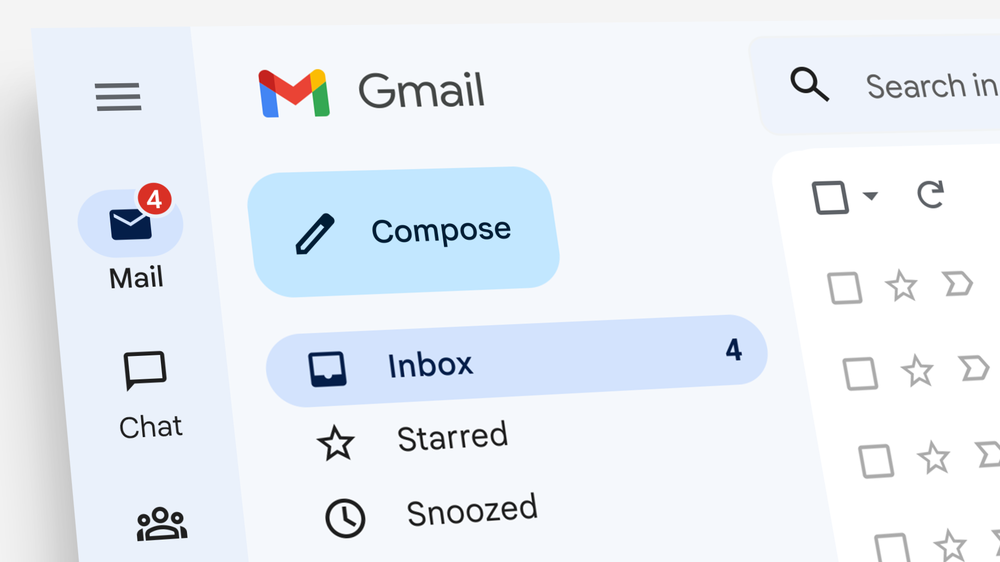
Select Settings and go to See all Settings, and then the General tab. Find Smart Compose, and select the suggestions off. Smart Compose Personalisation can also be disabled, along with Smart Reply.
The feature can be also be turned off in Gmail app through Settings.